








How to Extract Files from a Zipped (Compressed) Folder

How to Extract Files from a Zipped (Compressed) Folder
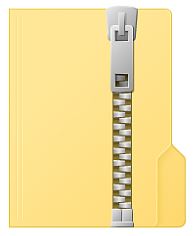
You can identify compressed files by the file extension (.zip) and a zipper on the folder icon.
Note:
If the zipped folder is attached in an email, you must first save the zipped file to your computer before you can extract it.
If the zipped folder is attached in an email, you must first save the zipped file to your computer before you can extract it.
Extract/Unzip Zipped Files
When you extract files from a zipped folder, a new folder with the same name is created which contains the files. The compressed (zipped) version also remains.
- Right-click the zipped folder saved to your computer.
- Choose "Extract All..." (an extraction wizard will begin).
- Click [Next >].
- Click [Browse...] and navigate to where you would like to save the files.
- Click [Next >].
- Click [Finish].
Note:
If the zipped file is protected with a password, you must provide the password before the file can be extracted to the specified folder. When you extract a file from a password-protected compressed folder, the extracted file is no longer protected.
If the zipped file is protected with a password, you must provide the password before the file can be extracted to the specified folder. When you extract a file from a password-protected compressed folder, the extracted file is no longer protected.
Delete Zipped File After File Extraction
To delete the compressed version, right-click the zipped folder > Choose [Delete].
Zip (Compress) Multiple Files
"Zipped" or "Compressed" files are often sent as email attachments. The compression process helps to reduce file size. View the help page on how to Zip (Compress) Multiple Files if you would like instructions on creating a zipped file.
Posted in Computer Help


