








PowerPoint: Presenter View on Dual Monitors
PowerPoint: Presenter View on Dual Monitors
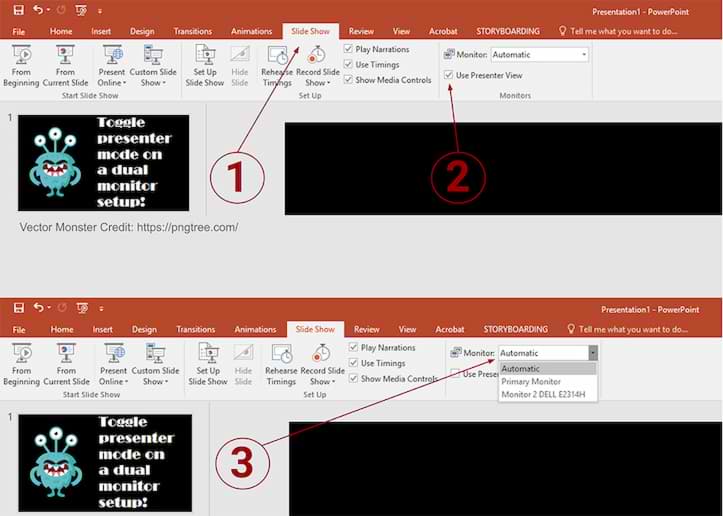 When working in PowerPoint with dual monitors, the presenter view in PowerPoint 2013 automatically appears on both screens when you view the slideshow. One screen shows the actual slideshow preview, and the other screen shows the presenter view of the slideshow (preview of next slide, speaker notes etc.). You can disable the presenter view from appearing on the second screen by following the instructions below.
To disable the presenter view:
- Within PowerPoint, click the [Slide Show] tab.
- Locate the "Monitors" group > Uncheck "Use Presenter View."
- Within the "Monitors" group, click the "Monitor" dropdown menu > Select the specific monitor on which the slideshow should display. (The default option reads "Automatic.")


