








How to Delete a Calendar in Google Calendar
How to Delete a Calendar in Google Calendar
In Google Calendar, you can delete or unsubscribe from calendars you no longer wish to use.
Note:
For shared calendars, it is important to know if you want to delete a calendar or simply unsubscribe to it. Deleting will permanently delete the calendar and no one who shares it with you will be able to access it anymore. Unsubscribing will only remove your access to the calendar; others will still be able to use it.
For shared calendars, it is important to know if you want to delete a calendar or simply unsubscribe to it. Deleting will permanently delete the calendar and no one who shares it with you will be able to access it anymore. Unsubscribing will only remove your access to the calendar; others will still be able to use it.
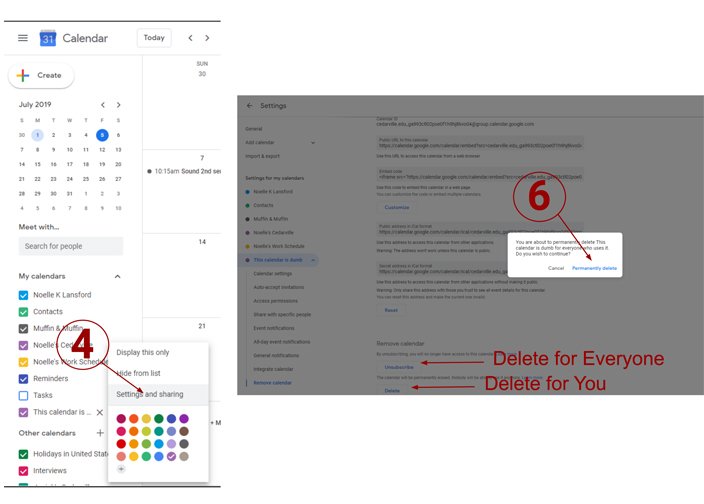
Delete a Calendar
To delete a calendar from your calendar list:
- Navigate to Google Calendar.
- In the sidebar, click the down arrow beside “My calendars”.
- Beside the calendar you wish to delete, click the "Options" icon (3 stacked dots).
- From the resulting menu, select “Settings and sharing”.
- From the "Remove calendar" section near the bottom of the page, click "Delete"
- Confirm that you want to permanently delete the calendar by checking the box next to “Yes, I definitely want to permanently delete this calendar for everyone" > Click [Delete for everyone].
Note:
The "Remove calendar" section will not appear for your primary calendar as you cannot delete your default calendar (the first calendar you created). You can; however, remove all its events.
The "Remove calendar" section will not appear for your primary calendar as you cannot delete your default calendar (the first calendar you created). You can; however, remove all its events.
Unsubscribe from a Calendar
To unsubscribe from a calendar from your calendar list:
- Navigate to Google Calendar.
- In the sidebar, click the down arrow beside “My calendars”.
- Beside the calendar you wish to unsubscribe from, click the "Options" icon (3 stacked dots).
- From the resulting menu, select “Settings and sharing”.
- From the "Remove calendar" section near the bottom of the page, click "Unsubscribe"


